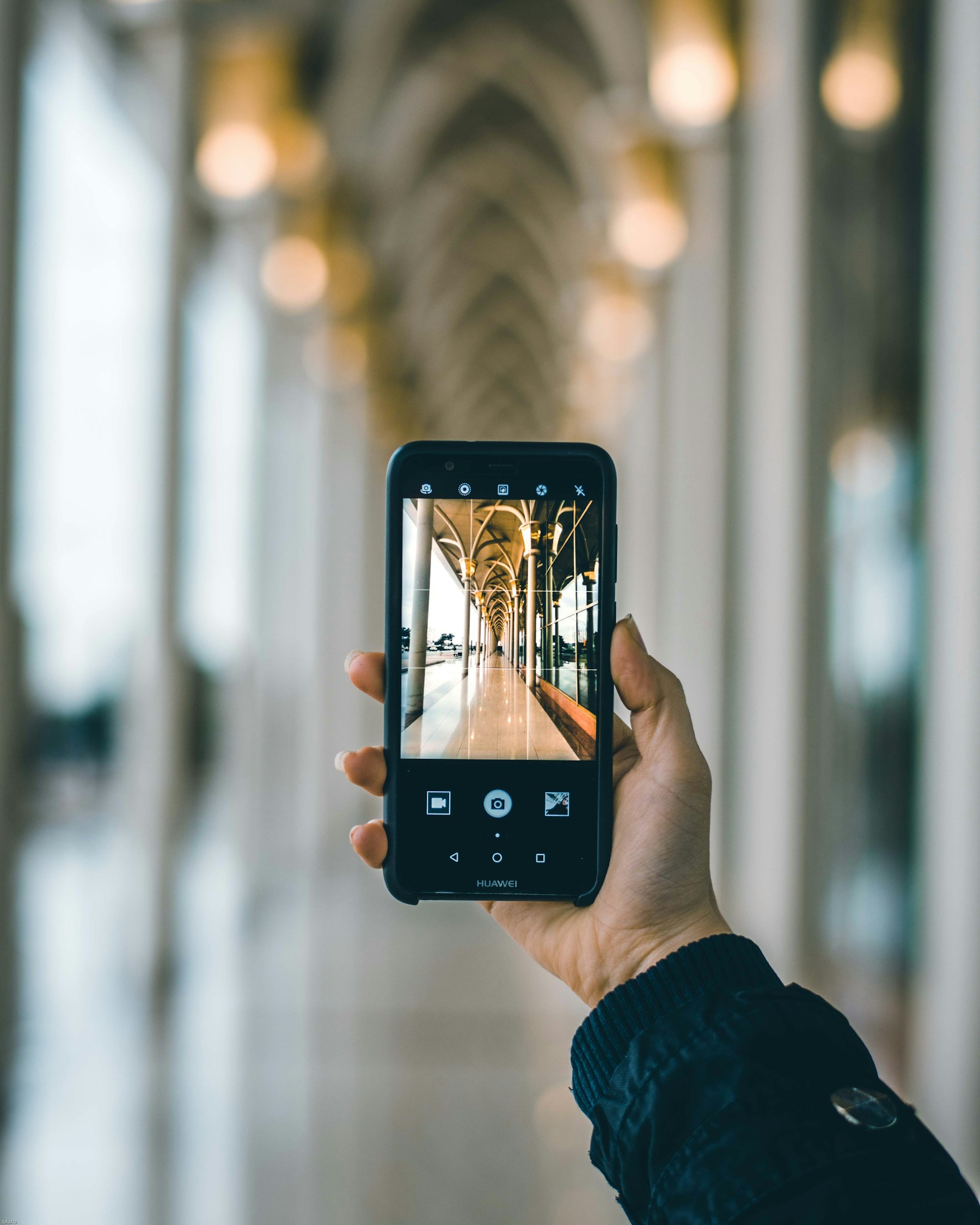
Google Lens turns your camera or a saved image into a search starting point. Instead of describing an object in words, you can point your phone at it and ask Google to identify it, translate visible text, find similar products or show pages that contain a matching image.
The feature is useful for travel, shopping, school, reading labels and identifying unfamiliar objects. It is not an authority on everything it recognizes, however. Results can be incomplete or wrong, so use Lens to discover information and then verify important details with reliable sources.
What Google Lens Can Do

Lens uses visual search to connect what appears in an image with information available across the web. Google describes it as a way to search what you see, using a phone camera or compatible browser tools.
Identify objects, plants and landmarks
Point the camera at an object, building, plant or piece of artwork and Lens may return visually similar results, names and pages with more context. Treat an identification as a starting point, especially with plants, wildlife, medication or anything where a mistake could cause harm.
Translate signs, menus and documents
Lens can recognize text in an image and display a translation. This can be useful when traveling, reading a menu or understanding a sign. The quality depends on the language, image clarity, lighting and the text’s layout.
Copy text from a photo
If you photograph a printed page, note or sign, Lens can recognize the words and let you copy them. That can save time when transferring a short passage into a document. Always check the copied text for errors, especially names, numbers and punctuation.
Research images and compare products
Lens can find similar images and pages where a picture appears. For products, results may include descriptions, retailers, reviews and prices where available. A matching image does not prove that two listings are the same product or that a seller is trustworthy.
Google’s own overview explains these uses in 5 ways to search what you see with Google Lens.
How to Use Google Lens on Android, iPhone and Chrome

The exact button placement can vary by device and app version, but the main process is similar: open Lens, point it at something or select an image, then refine the search if the first results are too broad.
On Android
Open the Google app and tap the Lens camera icon in the search bar. Allow camera access if prompted, point the camera at the object or text and tap the shutter or search control. You can also select an existing screenshot or photo when the app offers that option.
On iPhone or iPad
Open the Google app or Chrome app and look for the Lens icon in the search field. Choose the camera or an existing image, frame the subject and review the results. If Lens is not visible, update the app and check that camera permissions are enabled in iOS Settings.
In Chrome on a computer
On supported desktop versions of Chrome, use the Lens option from the address bar or browser menu to search part of a page or an image without leaving the tab. Select the area you want to investigate, then review the side panel results.
Translate text with Lens
Open Lens, point the camera at the printed text and choose Translate when the option appears. Keep the phone steady, make sure the text is well lit and select the source and destination languages if the app asks. For a saved image, choose it from your photos and use the same translation control.
Get better results with a clearer image
Move closer, avoid glare, keep the camera level and isolate the object you want to search. If the image contains many objects, tap or select only the relevant part. Add a few words describing what you want to know to narrow the results.
- Use a sharp, well-lit image and frame only the subject you want to identify.
- For translation, keep the camera steady and make sure the words are readable.
- For product research, compare the exact model number and seller—not just a similar-looking photo.
- For image verification, open more than one result and look for the earliest or original source.
For Google’s step-by-step instructions, see Search with an image on Google and Google Lens in Chrome.
On Android, start with the camera or Google Photos. Depending on your device, Lens may be available from the Google app, the camera experience, or Google Photos. In Google Photos, open a picture, tap More and choose Google Lens when that option is available. Google says Lens can help identify plants, animals, landmarks, products and other objects, and it can extract text from an image. The exact entry point can vary by device and app version. Google’s Google Photos Lens guide explains the supported workflow.
On iPhone, you can use Lens through Google’s apps. Install or open the Google app or Chrome, select the Lens camera option where it appears, and point the camera at the subject or choose an existing photo. In Chrome, Lens can search an image on a webpage or let you search with the camera. Google’s Chrome Lens guide covers desktop, Android and iPhone workflows. If the button is missing, update the app and check whether the feature is available in your region and account.
Use Lens as a starting point, not the final authority. A plant match can be wrong if the photo is blurry or the plant is photographed from an unusual angle. A product search may show visually similar items rather than the exact model. A landmark result may confuse two buildings with similar architecture. For health, safety, legal or financial decisions, verify the result with a reliable specialist or primary source instead of relying on image recognition alone.
Improve the result with a better image. Fill the frame with the object, use even lighting, avoid reflections and try a second angle when the first result is broad. For text, keep the page flat and the letters in focus. If you are translating a sign or menu, compare the translated words with the original before acting on a price, dosage, address or instruction. Lens is especially useful for discovery and quick extraction; it is not a substitute for checking the source material.
Also consider the context of the image you are searching. A photo may contain faces, documents, home interiors, location clues or other personal details. Use Lens deliberately, especially when searching images that include someone else’s private information. For everyday tasks, crop the image to the object or text you actually need and avoid sharing sensitive documents simply to identify a small detail.
The Bottom Line: Use Lens to Discover, Then Verify

Google Lens is most useful when you need to turn something visual into a searchable question. It can help identify objects, translate text, copy words from a photo, find similar images and explore products without typing a long description.
The best results come from a clear image and a specific question. But visual matches are not proof: confirm product details, check original sources and use specialist guidance for health, safety or other high-stakes decisions. Lens can point you in the right direction; it should not make the final decision for you.



Leave a Reply