
Digital skills are no longer just for people who work in technology. Everyday tasks—from applying for a job and organizing family documents to tracking expenses and protecting online accounts—depend on knowing how to use common digital tools. The good news is that learning does not have to start with an expensive course or a complicated certification.
This video-first guide points readers toward free lessons and practical skills they can use immediately. The goal is not to master every app. It is to become more confident with the tools that help you communicate, organize information, work with numbers and stay safer online.

Start with the skills that save time

The most useful digital skills are often basic. Knowing how to search effectively, write a clear email, organize files and share a document can prevent repeated frustration. These skills are useful at home, in school and at work.
Google’s Applied Digital Skills program offers free video-based lessons designed for independent learners. Its adult-learning resources include lessons for job seekers, everyday tasks, small-business owners and financial literacy. Projects include creating a resume, organizing files in Google Drive, using digital tools for everyday tasks and building a spreadsheet budget.
Skill 1: Organize files so you can find them

A messy downloads folder can waste time and make it easy to lose important documents. Learn to create a simple folder system based on projects or categories. Use clear names that include the subject and date, and avoid saving multiple files with vague names such as final-final-new.
Cloud storage tools can make files available across devices, but they also create sharing and privacy decisions. Before sending a link, check whether the document is visible only to specific people or to anyone with the link. Remove access when a project is complete if the file contains information that should not remain public.
Video lesson: Google Applied Digital Skills—Use Google Drive to Organize Files and Folders.
Skill 2: Write clearer documents and emails

A document should make its purpose easy to understand. Use a clear title, short paragraphs and headings when the material is long. For email, put the main request near the beginning, use a subject that describes the topic and attach files only after checking that you selected the correct version.
Learn the basics of document formatting, comments and shared editing. These features help people work together without sending a new attachment every time someone makes a small change. They also make it easier to track feedback and keep a single current version.
Video lessons: Google Workspace for Beginners.
Skill 3: Use a spreadsheet for real-life decisions

A spreadsheet is useful even if you never work in accounting. You can track bills, compare prices, organize a project, plan a trip or monitor business income. Start with a simple table: one column for the date, one for the item, one for the amount and one for the category.
Once the data is organized, learn a few basic formulas. A sum can total expenses, an average can compare costs and a filter can show only one category. You do not need advanced formulas to get value from a spreadsheet. The important part is entering information consistently.
Video lessons: Google Applied Digital Skills—Plan and Budget and Track Monthly Expenses.
Skill 4: Protect accounts with stronger sign-in habits
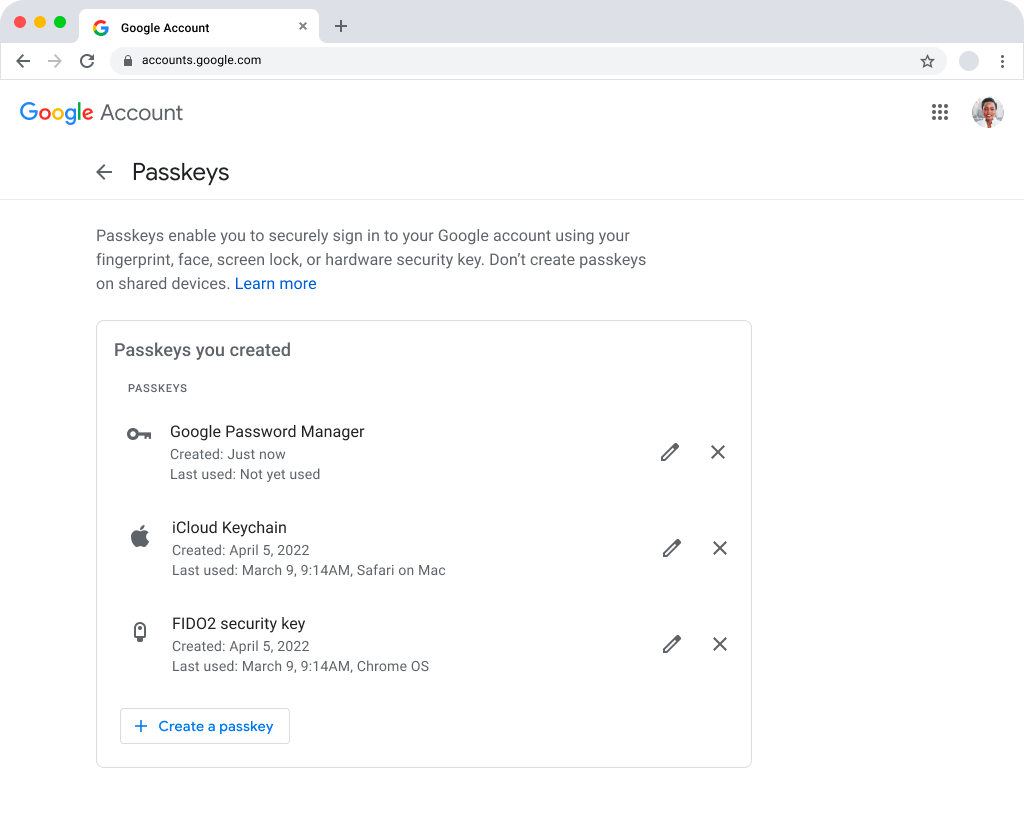
Digital confidence includes knowing how to protect your accounts. Use a unique password for each important service, turn on two-step verification where available and keep account recovery information current. Reusing one password across many sites creates a chain reaction if one service is breached.
A password manager can generate and store unique passwords. Google’s Password Manager documentation explains how it can create and save passwords and passkeys, autofill sign-in information and alert users about compromised credentials. A passkey can provide a more convenient sign-in method on supported services, but users should still secure their devices and recovery options.
Official guide: Google Password Manager—Get Started.
Skill 5: Recognize suspicious messages and links

A convincing email or text can imitate a bank, delivery company, employer or familiar brand. Slow down before clicking. Check the sender address, look for unusual requests and avoid entering passwords after following a link in an unexpected message. If the message claims that an account needs attention, open the company’s app or website directly instead.
Learn to identify the difference between a website’s display name and its actual web address. Be especially cautious when a message asks for payment, verification codes, identity documents or urgent action. A legitimate organization should not pressure you to reveal a one-time code to a stranger.
Free cybersecurity learning resources: NIST’s list of free and low-cost cybersecurity training.
A simple 30-minute learning plan

- Minutes 1–5: Choose one task you want to make easier, such as organizing files or tracking expenses.
- Minutes 6–15: Watch one lesson and pause when you need to repeat a step.
- Minutes 16–25: Complete the task on your own device using a real example.
- Minutes 26–30: Write down what worked and one question to explore next.
Learning sticks when you practice. Watching a video can show you where to click, but completing a small project helps you remember the process. If a lesson moves too quickly, pause it, rewind and repeat the action. There is no advantage to rushing through a tutorial you do not understand.
How to choose a useful video lesson

A good lesson should show the steps clearly, use a current version of the tool and explain why each action matters. Look for a trusted provider, a clear lesson description and a project you can complete. Avoid tutorials that require you to download unfamiliar files or enter personal information on unrelated websites.
The best first course is the one that solves a problem you have today. If your files are disorganized, start there. If you are applying for work, build a resume. If money feels difficult to track, create a simple budget sheet. Practical progress is more valuable than collecting course completion badges without using the skills.
The bottom line

Digital skills become powerful when they make everyday life easier. File organization, clear communication, spreadsheets, secure sign-ins and scam awareness are useful foundations for almost anyone. Free video lessons can help you learn at your own pace, but the real improvement comes when you practice on a task that matters to you.
Pick one skill, finish one short lesson and use it the same day. Then build from there. A few small improvements can make your devices feel less confusing and your digital life more organized.
Sources and video learning

Google Applied Digital Skills for Adults.
Google Workspace for Beginners—Video Lessons.
NIST: Free and Low-Cost Cybersecurity Learning Content.
Explore more Videos from The Immortal Content.


Leave a Reply