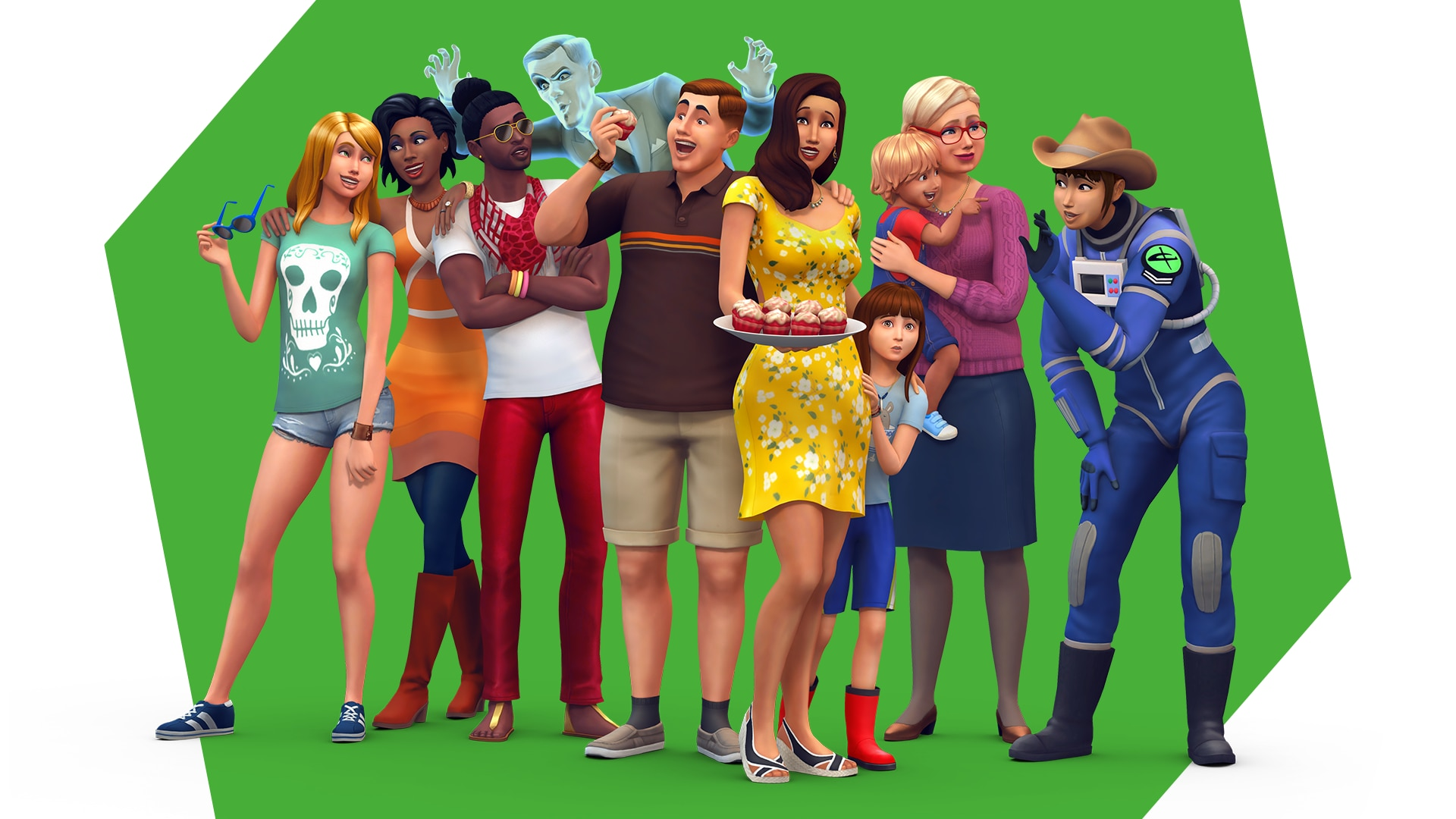

Mods and custom content can add new hairstyles, clothes, furniture and gameplay features to The Sims 4. The installation itself is usually simple; the problems tend to come from putting files in the wrong folder, using an outdated mod or forgetting to re-enable custom content after a game update.
Quick answer: On PC or Mac, extract the download, move the appropriate files into Documents/Electronic Arts/The Sims 4/Mods, enable Custom Content and Mods in Game Options, and restart the game. EA says mods are not available on PlayStation or Xbox.
This guide follows Electronic Arts’ installation and troubleshooting guidance and explains the file types, folder locations and checks that help protect your saved games. For the audience side of the game, see our separate feature on research into women who play The Sims.
What are Sims 4 mods and custom content?

Players often use “mods” as a catch-all term, but EA separates two broad kinds of community-made content. Custom content, usually shortened to CC, adds visual items such as hair, clothing, accessories, furniture and décor. Game mods change or extend how the game works, from new traits and gameplay systems to interface changes and script-based features.
Both are made by players rather than Maxis. EA says it does not pre-screen, endorse or support individual mods, so the company cannot guarantee that a download is safe or compatible. Download from a creator’s established page, read the installation notes, and check whether the creator has confirmed compatibility with the current game version.
Before adding or replacing files, back up the Saves folder and, if you already use mods, make a copy of the existing Mods folder. A backup gives you a way back if a file causes missing objects, unusual behavior or a damaged save.
Where is the Sims 4 Mods folder, and how do you install files?

The standard Mods folder is inside the game’s user-data folder, not the folder where the game application is installed. On Windows and macOS, the usual path is:
Documents/Electronic Arts/The Sims 4/Mods
If the Mods folder is missing, open the The Sims 4 folder and create a folder named Mods. If Documents is synced through OneDrive or iCloud, check the synced Documents location as well; the active game folder may be there.
- Download from the creator. Check the creator’s instructions, game-version notes and any required files.
- Extract the archive. If the download is a ZIP or RAR file, unzip it before moving the contents.
- Move the files. Place the extracted
.packageand any required.ts4scriptfiles in the Mods folder, following the creator’s folder structure. - Enable the options. Launch the game, open Game Options, choose Other, and turn on Enable Custom Content and Mods. If the mod uses scripts, also turn on Script Mods Allowed.
- Restart the game. Close and relaunch The Sims 4 so the settings take effect, then check the mod list and test the content in a backed-up save.
EA’s official instructions confirm the PC and Mac installation flow. You do not need a mod manager for ordinary package or script files; manual installation is enough when you know which files belong in the folder.
Which files belong in Mods, Tray and subfolders?

The file extension tells you where a download belongs. Mixing up Mods and Tray is a common reason downloaded households or lots fail to appear.
.packagefiles are used for many items of custom content and some gameplay changes. Package files can be organized in subfolders inside Mods..ts4scriptfiles are used by script mods. Keep them in the main Mods folder or no more than one folder below it; deeply nested script files may not load.- Tray files belong in
Documents/Electronic Arts/The Sims 4/Tray, not Mods. They can include files such as.trayitem,.blueprint,.bpiand.hhi. Keep the files supplied for one household, room or lot together.
EA community guidance describes a maximum of five folder levels for package files and a shallower location for script files. Follow a creator’s specific instructions if a mod requires dependencies or a particular folder structure. Do not delete Resource.cfg as a routine cleanup step.
How to fix broken Sims 4 mods after an update

A game patch can make a previously working mod incompatible. EA says it disables mods after updates to reduce the chance of problems. That does not mean every mod is broken; it means players should check each creator’s compatibility notes before turning everything back on.
After an update, first launch the game with mods disabled and confirm that the unmodified game works. If you open a household for this check, exit without saving before restoring custom content. EA warns that saving while mods are disabled can remove modded content from a save. Then check for updated files, re-enable the options under Game Options → Other, restart and test.
If a mod is missing or the game crashes, check the likely causes in this order: the archive was not extracted; the files are in the wrong Mods folder; the required options are off; a script file is nested too deeply; the mod is outdated; or two mods conflict. Remove recent additions first and test again.
For a large folder, use the 50/50 method: move half the files out, test the game, then keep dividing the problem batch until the incompatible file is identified. Delete localthumbcache.package from the main Sims 4 folder after changing mods if troubleshooting guidance calls for it; the game will create a new cache. Do not delete your Saves folder.
Mods and custom content are supported on PC and Mac, not PlayStation or Xbox. If a creator’s download includes an installer, unexpected executable file or multiple unrelated redirects, stop and verify the source before running anything.
Bottom line: keep a backup, use the correct folder, check file types and re-check compatibility after every major game update. Those habits prevent many of the problems that make Sims 4 mods appear broken.
Sources: Electronic Arts: How to install Mods in The Sims 4; Electronic Arts: Mods, game updates and error codes; EA Forums: Mods and Custom Content.
Editorial note: Installation and compatibility guidance checked against EA support materials on November 20, 2026. Third-party mods can change or become incompatible without notice.



Leave a Reply
You must be logged in to post a comment.